

How to Connect Zed to xCloud MCP
Updated October 4, 2026 · 4 min read
Zed is a code editor from Zed Industries with a built-in Agent Panel, where an AI agent works on your project and can call MCP tools. Connected to xCloud with one settings entry, it deploys repositories, updates WordPress, checks SSL and diagnoses failures from the same panel.
This guide covers the connection only. For what Zed can do once it is connected, with one guide per hosting job, see the Zed and xCloud guide. The xCloud side is free with every account, including the free plan.
What you need
- An xCloud account. If you do not have one yet, sign up for free.
- Zed installed and signed in.
- A browser for the OAuth sign-in. A machine without a browser can use an API key instead; the steps below show both.
The xCloud MCP server lives at one endpoint, https://app.xcloud.host/mcp, over the MCP Streamable HTTP transport. The same setup also lives in your dashboard under Settings → Developers → MCP.
Step 1: Add xCloud as a remote server
Open Settings, then AI, then MCP Servers, click Add Server and choose Add Remote Server. Or run the zed: open settings file action and add this to settings.json yourself. Zed writes the same entry either way.
{
  "context_servers": {
    "xcloud": {
      "url": "https://app.xcloud.host/mcp"
    }
  }
}
Step 2: Sign in and check the dot
Because the entry has no Authorization header, Zed prompts you to authenticate through the MCP OAuth flow. Approve the teams and the access level in the browser. In Settings, AI, MCP Servers a green dot next to xcloud with the tooltip Server is active means it worked. Then ask this in the Agent Panel.
Who am I on xCloud?Step 3: No browser sign-in? Use an API key
Create a token with the mcp:invoke scope plus the read abilities for the areas it will use (read:servers and read:sites, with read:billing and read:addons for billing and add-on tools) and the matching write: abilities if it should change things in Settings, Developers, API Tokens and add it as a header. With an Authorization header set, Zed skips its OAuth prompt. Replace YOUR_TOKEN with the token, which contains a pipe character, and keep it out of git and out of chat.
{
  "context_servers": {
    "xcloud": {
      "url": "https://app.xcloud.host/mcp",
      "headers": { "Authorization": "Bearer YOUR_TOKEN" }
    }
  }
}
Approve access in your browser
The first time Zed reaches for an xCloud tool, your browser opens on the xCloud authorization screen. Tick the teams the connection may act on and choose Read-only or Full access. With no Authorization header in the entry, Zed starts the standard MCP OAuth flow and you approve access in the browser. Setting an Authorization header with an API key that carries the mcp:invoke scope and the read or write abilities it needs replaces that flow.
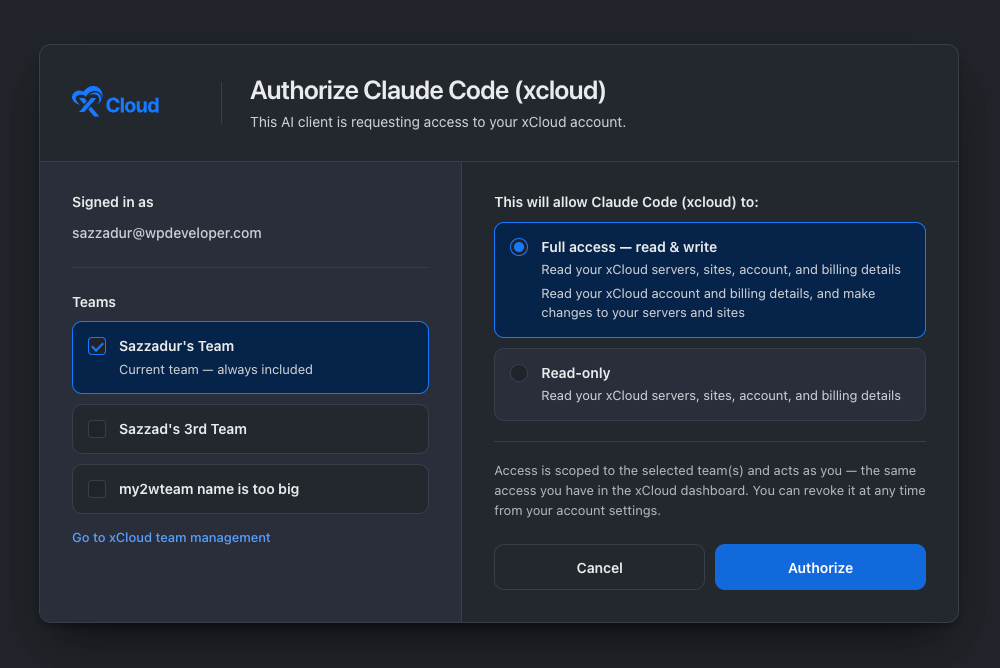
Every connection is listed with your API keys, so you can revoke it at any time. Read-only is enough for reports and checks; choose Full access when you want the agent to deploy, update or change things. With Full access, routine actions such as a backup, a cache purge or a service restart run without an xCloud prompt, while creating, deploying, updating, rebooting, deleting or buying still waits for your confirmation.
Check it worked
Ask Zed:
Who am I on xCloud?It should answer with your real account name, email and teams, not a guess. If it says it has no xCloud tools, re-check the step above and restart the client.
What Zed can do on xCloud
On the xCloud side, reads run straight away, and anything that creates, deploys, updates, reboots, deletes or buys is previewed first and waits for your confirmation. Zed’s own approval prompts, where it has them, apply on top of that. A few prompts to start with:
Use xCloud to list my servers and tell me which have a pending reboot or low disk space.Use xCloud to deploy https://github.com/acme/shop to my Frankfurt server and show me the dry run first.Use xCloud to find every site with pending plugin updates and list them, worst first.There is a guide for each hosting job, from deploying a repository to fixing a 502, on the Zed and xCloud guide, and a longer prompt library in What You Can Ask xCloud MCP to Do.
Good to know
- Mention xCloud by name in your prompt, for example Use xCloud to. Zed notes that how reliably MCP tools get called varies by model, and naming the server helps the model choose its tools.
- Zed’s approval setting is agent.tool_permissions.default from v0.224.0. Before that version it was agent.always_allow_tool_actions. Keep it on confirm unless you only run read-only questions.
- For per-tool rules, Zed’s key format is mcp:
:<tool_name>, so the xCloud entry is named xcloud in those keys.
Frequently asked questions
How do I connect Zed to xCloud?
Open Settings, AI, MCP Servers, click Add Server and choose Add Remote Server, or add an xcloud entry under context_servers in settings.json with url set to https://app.xcloud.host/mcp. Approve access in the browser when Zed prompts for sign-in, then ask who am I on xCloud in the Agent Panel.
Do I need an xCloud API key in Zed?
No. When the entry has no Authorization header, Zed prompts you to authenticate through the standard MCP OAuth flow. An API key is only for a setup without a browser: create a token with the mcp:invoke scope plus the read abilities for the areas it will use (read:servers and read:sites, with read:billing and read:addons for billing and add-on tools) and the matching write: abilities if it should change things and pass it as an Authorization header under headers.
How do I know the xCloud server is working in Zed?
Open Settings, AI, MCP Servers and look at the dot beside xcloud. Green with the tooltip Server is active means it is connected. Other colors and tooltip messages say what is wrong, such as a sign-in still pending.
Can Zed change my servers without asking?
Not for the operations xCloud gates. Zed’s default is to confirm before any tool action, including MCP calls, so with the default settings every xCloud call, reads included, waits for your approval in Zed; a per-tool rule under agent.tool_permissions can let reads through. xCloud adds its own gate on top: reads and routine actions such as backups, PageSpeed scans and vulnerability scans need no xCloud confirmation, while creating, deploying, updating, rebooting, deleting, buying or starting a broken-link scan is refused unless the call carries an explicit confirmation.
Next steps
- Zed and xCloud: every job guide
- How to connect xCloud MCP to your AI agent for the other clients
- Multi-team API tokens and MCP access
If you run into any issues connecting, feel free to reach out to our support team.