

How to Connect Windsurf to xCloud MCP
Updated October 4, 2026 · 4 min read
Windsurf is an AI code editor from Cognition, formerly Codeium, now shipped as Devin Desktop, and both of its agents, Devin Local and the legacy Cascade, can call tools from MCP servers. Connected to xCloud through the MCP server, the agent deploys repositories, takes backups, updates WordPress and diagnoses failures without leaving the editor.
This guide covers the connection only. For what Windsurf can do once it is connected, with one guide per hosting job, see the Windsurf and xCloud guide. The xCloud side is free with every account, including the free plan.
What you need
- An xCloud account. If you do not have one yet, sign up for free.
- Windsurf installed and signed in.
- A browser for the OAuth sign-in. A machine without a browser can use an API key instead; the steps below show both.
The xCloud MCP server lives at one endpoint, https://app.xcloud.host/mcp, over the MCP Streamable HTTP transport. The same setup also lives in your dashboard under Settings → Developers → MCP.
Step 1: Add xCloud to the Devin Local agent
New tabs in Devin Desktop use the Devin Local agent, which reads MCP servers from the Devin CLI config files. Run this in a terminal: the URL is treated as Streamable HTTP, and the second command opens the browser for the xCloud sign-in (the agent also prompts on first use). By default the entry lands in .devin/mcp_config.local.json for the current project; add -s user to the first command to share it across projects in ~/.config/devin/mcp_config.json, where the entry reads url plus transport http.
devin mcp add xcloud https://app.xcloud.host/mcp
devin mcp login xcloud
Step 2: Or edit the legacy Cascade config
If your tab runs the legacy Cascade agent, click the three-dot menu in the Cascade panel, then the Open MCP config file icon in the MCPs section, and add this under mcpServers. Cascade allows 100 tools in total and the full xCloud server offers 188 operations plus two search tools, so point serverUrl at the compact profile, five tools that reach every operation through search and call; a single toolset such as ?toolsets=sites (60 tools) also fits, but sites and servers together are 121 tools. Windsurf’s file has been at ~/.codeium/windsurf/mcp_config.json, and the current documentation lists ~/.config/devin/mcp_config.json on macOS and Linux and %APPDATA%\devin\mcp_config.json on Windows; the icon opens the one your version reads.
{
  "mcpServers": {
    "xcloud": {
      "serverUrl": "https://app.xcloud.host/mcp?profile=compact"
    }
  }
}
Step 3: No browser sign-in? Use an API key
Create a token with the mcp:invoke scope plus the read abilities for the areas it will use (read:servers and read:sites, with read:billing and read:addons for billing and add-on tools) and the matching write: abilities if it should change things in Settings, Developers, API Tokens, export it as XCLOUD_TOKEN and add a headers field to the xcloud entry. Both agents fill in the ${env:XCLOUD_TOKEN} reference from your environment, so the token itself stays out of the file. The Devin Local entry is shown; for Cascade the same headers field sits beside serverUrl.
"xcloud": {
  "url": "https://app.xcloud.host/mcp",
  "transport": "http",
  "headers": {
    "Authorization": "Bearer ${env:XCLOUD_TOKEN}"
  }
}
Approve access in your browser
The first time Windsurf reaches for an xCloud tool, your browser opens on the xCloud authorization screen. Tick the teams the connection may act on and choose Read-only or Full access. Devin Local signs in when you run devin mcp login xcloud or when the server is first used, and keeps the OAuth tokens locally and refreshes them; Cognition lists OAuth as supported for each Cascade transport as well. Without a browser, send an API key that carries the mcp:invoke scope and the read or write abilities it needs in the headers field.
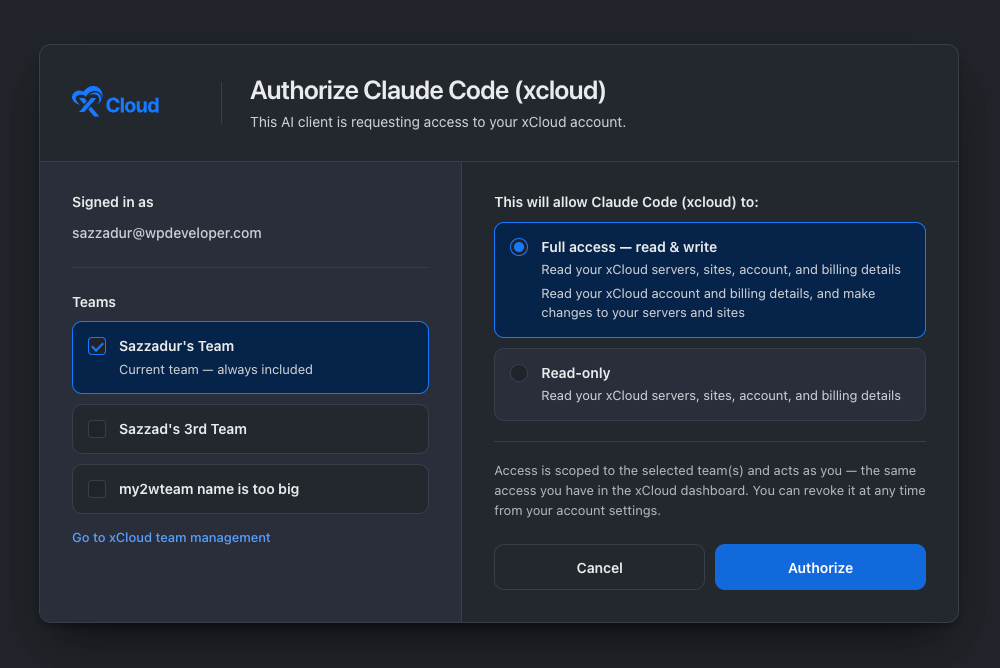
Every connection is listed with your API keys, so you can revoke it at any time. Read-only is enough for reports and checks; choose Full access when you want the agent to deploy, update or change things. With Full access, routine actions such as a backup, a cache purge or a service restart run without an xCloud prompt, while creating, deploying, updating, rebooting, deleting or buying still waits for your confirmation.
Check it worked
Ask Windsurf:
Who am I on xCloud?It should answer with your real account name, email and teams, not a guess. If it says it has no xCloud tools, re-check the step above and restart the client.
What Windsurf can do on xCloud
On the xCloud side, reads run straight away, and anything that creates, deploys, updates, reboots, deletes or buys is previewed first and waits for your confirmation. Windsurf’s own approval prompts, where it has them, apply on top of that. A few prompts to start with:
Deploy https://github.com/example/shop to my Frankfurt server and show me the dry run before you create anything.Which of my sites have pending WordPress updates? Back each one up first, then update and check the homepages.shop.example.com is returning 502. Find the cause and tell me what you would change before you change it.There is a guide for each hosting job, from deploying a repository to fixing a 502, on the Windsurf and xCloud guide, and a longer prompt library in What You Can Ask xCloud MCP to Do.
Good to know
- New tabs in Devin Desktop run the Devin Local agent, so the Cascade panel steps only apply when a tab uses the legacy Cascade agent. Devin Local reads MCP servers from the Devin CLI config files, which devin mcp add writes.
- The Devin Local MCP config file moved in Devin Local 3.6 (v3000.3): older versions keep mcpServers inside config.json, newer ones use mcp_config.json beside it, and entries migrate automatically. Legacy Cascade has used ~/.codeium/windsurf/mcp_config.json; the Open MCP config file icon opens the file your version reads.
- Legacy Cascade caps the total at 100 tools. The full xCloud profile is more than that on its own, so give Cascade https://app.xcloud.host/mcp?profile=compact. A single toolset such as ?toolsets=sites (60 tools) also fits, but ?toolsets=sites,servers is 121 tools and does not. No such cap is documented for Devin Local.
- Enterprise users must turn MCP on in settings. Once a team admin allowlists even one MCP server, every Cascade server that is not on the list is blocked, and Devin Local can be limited to a team MCP registry. The server ID must match the key name, xcloud, exactly.
Frequently asked questions
How do I connect Windsurf to xCloud?
For the Devin Local agent, the default in new tabs, run devin mcp add xcloud https://app.xcloud.host/mcp and then devin mcp login xcloud, approve the xCloud sign-in in your browser and ask who am I on xCloud to confirm. If your tab runs the legacy Cascade agent, open the Cascade panel’s three-dot menu, click Open MCP config file and add an xcloud entry under mcpServers with serverUrl set to https://app.xcloud.host/mcp?profile=compact.
Why do the Windsurf MCP docs mention Devin?
Windsurf’s maker, Cognition, now ships Windsurf as Devin Desktop and documents it on docs.devin.ai. The default agent for new tabs is Devin Local, which is configured through the Devin CLI; the Cascade MCP page says its configuration applies to the legacy Cascade agent. This page gives the Devin Local path first and the Cascade path as the alternative.
Which config file does Windsurf read?
Devin Local reads ~/.config/devin/mcp_config.json for your user, .devin/mcp_config.json for the project and .devin/mcp_config.local.json for a gitignored local override; devin mcp add writes to the local file unless you pass -s user or -s project. Legacy Cascade has used ~/.codeium/windsurf/mcp_config.json, and the current documentation lists ~/.config/devin/mcp_config.json on macOS and Linux and %APPDATA%\devin\mcp_config.json on Windows; the Open MCP config file icon opens the one your version reads.
Should I use url or serverUrl for xCloud in Windsurf?
For Devin Local use url with transport set to http, the form devin mcp add writes. For legacy Cascade use serverUrl, the key shown in Windsurf’s remote MCP example and in xCloud’s own setup guide; the Cascade page says a remote entry takes serverUrl or url, so url may also work there, but serverUrl is the safe choice.
Next steps
- Windsurf and xCloud: every job guide
- How to connect xCloud MCP to your AI agent for the other clients
- Multi-team API tokens and MCP access
If you run into any issues connecting, feel free to reach out to our support team.