

How to Connect Claude Cowork to xCloud MCP
Updated October 4, 2026 · 4 min read
Claude Cowork is Anthropic’s desktop agent for knowledge work: you describe a task, hand it off and let Claude work through it. Connected to xCloud as a custom connector, it can carry out multi-step hosting jobs such as a site-by-site audit or a careful plugin update, and stop for your approval before it creates, deploys, updates or deletes anything.
This guide covers the connection only. For what Claude Cowork can do once it is connected, with one guide per hosting job, see the Claude Cowork and xCloud guide. The xCloud side is free with every account, including the free plan.
What you need
- An xCloud account. If you do not have one yet, sign up for free.
- Claude Cowork open in your browser or desktop app, on a plan that allows custom MCP connectors.
- A browser for the OAuth sign-in. No API key is needed for the MCP connection.
The xCloud MCP server lives at one endpoint, https://app.xcloud.host/mcp, over the MCP Streamable HTTP transport. The same setup also lives in your dashboard under Settings → Developers → MCP.
Step 1: Add xCloud as a custom connector
In Cowork, open Customize, then Connectors, and choose Add custom connector. If you already added xCloud to your Claude account, look for it in that list first. Name it xcloud, use this URL and sign in when the xCloud approval page opens.
https://app.xcloud.host/mcpStep 2: Check the connection
Start a task and ask this first. Claude Cowork calls xCloud and names your account and the teams you approved, so you know the connector works before you delegate real work.
Who am I on xCloud?Step 3: Match the access level to the job
Optional. On the xCloud approval screen, Full access lets a delegated job deploy, update plugins and renew certificates; Read-only is enough for audits and reports. To change the level later, reconnect the connector and approve again. A Team or Enterprise owner adds the same URL under Organization settings, then Connectors.
https://app.xcloud.host/mcpApprove access in your browser
The first time Claude Cowork reaches for an xCloud tool, your browser opens on the xCloud authorization screen. Tick the teams the connection may act on and choose Read-only or Full access. You sign in to xCloud in the browser when you add the connector. xCloud supports dynamic client registration, so there is no token to create. The scope you pick, Read-only or Full access, limits what the task can do.
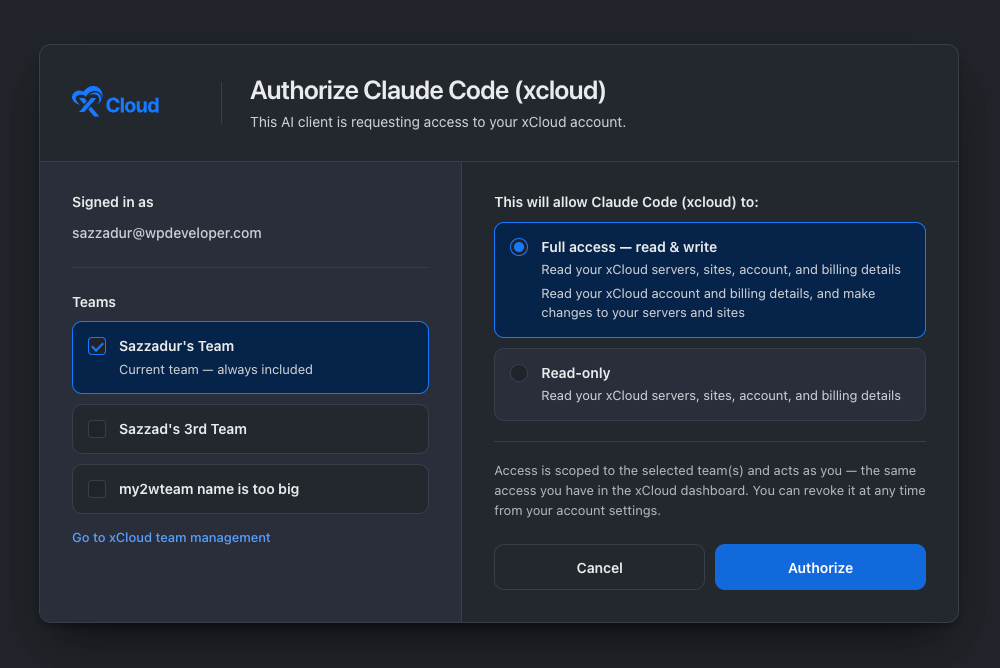
Every connection is listed with your API keys, so you can revoke it at any time. Read-only is enough for reports and checks; choose Full access when you want the agent to deploy, update or change things. With Full access, routine actions such as a backup, a cache purge or a service restart run without an xCloud prompt, while creating, deploying, updating, rebooting, deleting or buying still waits for your confirmation.
Check it worked
Ask Claude Cowork:
Who am I on xCloud?It should answer with your real account name, email and teams, not a guess. If it says it has no xCloud tools, re-check the step above and restart the client.
What Claude Cowork can do on xCloud
On the xCloud side, reads run straight away, and anything that creates, deploys, updates, reboots, deletes or buys is previewed first and waits for your confirmation. Claude Cowork’s own approval prompts, where it has them, apply on top of that. A few prompts to start with:
Audit every site on my account for uptime, SSL expiry and known vulnerabilities, then write a one-page summary.Check which sites have plugin updates waiting. For each, say what changed and whether a backup exists.Take a backup of example.com and shop.example.com and confirm both finished.There is a guide for each hosting job, from deploying a repository to fixing a 502, on the Claude Cowork and xCloud guide, and a longer prompt library in What You Can Ask xCloud MCP to Do.
Good to know
- Claude connects to xCloud from Anthropic’s cloud, not from your computer. The xCloud MCP URL is public, so no firewall change is needed.
- The Free plan allows one custom connector in total. Team and Enterprise owners add connectors for the organization.
- Access is chosen at sign-in. To move from Read-only to Full access, reconnect the connector and approve Full access.
Frequently asked questions
How do I connect Claude Cowork to xCloud?
Open Customize, then Connectors in Cowork, choose Add custom connector, name it xcloud and paste https://app.xcloud.host/mcp. Sign in to xCloud in the browser and approve the teams and access level. Then ask who am I on xCloud to confirm.
What is the difference between Claude and Claude Cowork for xCloud?
Claude is the chat assistant, where you ask and answer turn by turn. Claude Cowork is the desktop agent for delegated work, where you hand over a whole job. Both use the same xCloud MCP server, and Anthropic lists custom connectors as available in both.
Do I add the connector again if I already added it to Claude?
Check Customize, then Connectors inside Cowork first. If xCloud is listed, you can use it. If it is not, add it there with the same URL and sign in again.
Can Claude Cowork change my servers without asking?
It depends on the permission mode, and xCloud gates the consequential operations either way. Cowork’s permission mode decides how often it asks: in Manual mode every connector call waits for your approval, Auto mode approves read-only tools and reviews writes itself, and Skip mode approves everything. xCloud adds its own gate on top of that: reads and routine actions such as backups, PageSpeed scans and vulnerability scans need no xCloud confirmation, while creating a site, deploying, updating plugins, rebooting, deleting, buying or starting a broken-link scan is refused unless the call carries an explicit confirmation, so a delegated task stops and asks you.
Next steps
- Claude Cowork and xCloud: every job guide
- How to connect xCloud MCP to your AI agent for the other clients
- Multi-team API tokens and MCP access
If you run into any issues connecting, feel free to reach out to our support team.