

How to Connect ChatGPT to xCloud MCP
Updated October 4, 2026 · 4 min read
ChatGPT is OpenAI’s AI assistant, and in developer mode it can use tools from a remote MCP server. Connected to xCloud, it checks your servers and sites, takes backups, updates WordPress, renews SSL and diagnoses failures from a chat on the web.
This guide covers the connection only. For what ChatGPT can do once it is connected, with one guide per hosting job, see the ChatGPT and xCloud guide. The xCloud side is free with every account, including the free plan.
What you need
- An xCloud account. If you do not have one yet, sign up for free.
- ChatGPT open in your browser or desktop app, on a plan that allows custom MCP connectors.
- A browser for the OAuth sign-in. No API key is needed for the MCP connection.
The xCloud MCP server lives at one endpoint, https://app.xcloud.host/mcp, over the MCP Streamable HTTP transport. The same setup also lives in your dashboard under Settings → Developers → MCP.
Step 1: Turn on developer mode and open Plugins
In ChatGPT on the web, open Settings, Security and login and turn on Developer mode. Then open the Plugins page and select the plus button to create an app. OpenAI lists developer mode for Pro, Plus, Business, Enterprise and Education accounts on the web, but its help center puts full MCP support with write actions in beta on Business, Enterprise and Edu workspaces and gives Pro accounts read and fetch access only, so check your plan before you expect ChatGPT to deploy or update anything. That path is for a personal account. In a Business, Enterprise or Edu workspace the controls sit under Apps instead. On Business only an admin or owner can use Developer mode: they turn it on while creating the app from Workspace settings, Apps, Create, and publish it from Workspace settings, Apps. On Enterprise and Edu an admin or owner can also toggle Developer mode under Settings, Apps, Advanced settings, and a member granted developer access under Permissions and Roles turns it on there too and can create and test the app from their own Settings, Apps, Create, but only an admin or owner can publish it. An ordinary member cannot do this, so ask an admin to publish the xcloud app; then open Settings, Plugins, select xcloud, install it if offered and choose Connect, sign in to xCloud and pick the teams and access level, and only then start at the last step.
https://chatgpt.com/pluginsStep 2: Create the app with the xCloud MCP URL
Name the app xcloud, paste this as the MCP server URL and choose OAuth for authentication. xCloud supports dynamic client registration, so you do not need to create a client ID. Sign in with xCloud when the browser asks, tick the teams and choose Read-only or Full access.
https://app.xcloud.host/mcpStep 3: Install the plugin and use it in a Work chat
Open your personal Plugins page, open xcloud and select the plus button to install it. Back on the ChatGPT homepage, switch the tab at the top from Chat to Work, start a new Work chat, type @ and pick xcloud; a plain Chat tab conversation does not offer the plugin. Then type a request like this one.
Using the xcloud app, who am I on xCloud and which servers do I have?Approve access in your browser
The first time ChatGPT reaches for an xCloud tool, your browser opens on the xCloud authorization screen. Tick the teams the connection may act on and choose Read-only or Full access. You sign in with xCloud in the browser and approve the teams and access level. ChatGPT registers itself through dynamic client registration, so there is no token to create or paste.
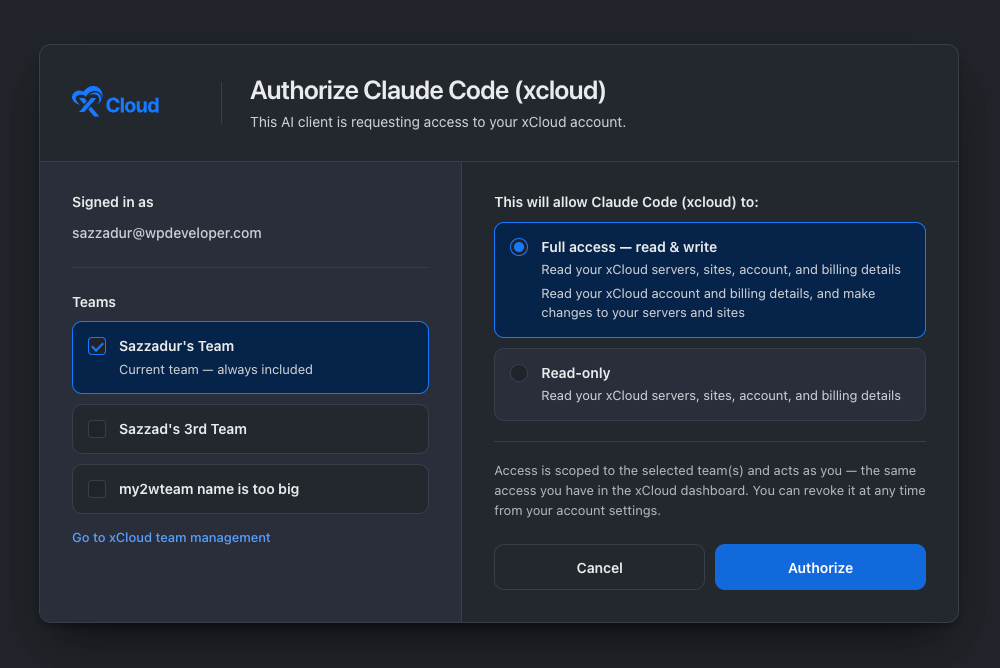
Every connection is listed with your API keys, so you can revoke it at any time. Read-only is enough for reports and checks; choose Full access when you want the agent to deploy, update or change things. With Full access, routine actions such as a backup, a cache purge or a service restart run without an xCloud prompt, while creating, deploying, updating, rebooting, deleting or buying still waits for your confirmation.
Check it worked
Ask ChatGPT:
Using the xcloud app, who am I on xCloud?It should answer with your real account name, email and teams, not a guess. If it says it has no xCloud tools, re-check the step above and restart the client.
What ChatGPT can do on xCloud
On the xCloud side, reads run straight away, and anything that creates, deploys, updates, reboots, deletes or buys is previewed first and waits for your confirmation. ChatGPT’s own approval prompts, where it has them, apply on top of that. A few prompts to start with:
Using the xcloud app, list my servers and tell me which one has the least free disk space.Is SSL healthy on shop.example.com, and when does the certificate expire?Which sites on my account have vulnerabilities, and what would you fix first?There is a guide for each hosting job, from deploying a repository to fixing a 502, on the ChatGPT and xCloud guide, and a longer prompt library in What You Can Ask xCloud MCP to Do.
Good to know
- ChatGPT connects from OpenAI’s servers, not from your machine. The xCloud MCP URL is public, but a firewall or IP allow-list in front of a different server would block it.
- Write actions depend on your ChatGPT plan. OpenAI’s developer guide lists developer mode for Pro, Plus, Business, Enterprise and Education accounts on the web, while its help center says full MCP support with write actions is in beta on Business, Enterprise and Edu workspaces and that Pro accounts connect with read and fetch access only. On a plan without write actions, treat ChatGPT as a read-only xCloud client and make changes from the dashboard or another agent. If you do not see developer mode under Settings, Security and login, check your plan.
- OpenAI marks developer mode as higher risk: a connected server can read and, with write actions, change your data. Choose Read-only on the xCloud approval screen if you only want answers, and read each write confirmation before you accept it.
- The plugin is listed on your personal Plugins page, where you open it and install it; until it is installed, @ will not find it. Its tool list is managed under Drafts in ChatGPT’s app settings, where you can switch individual tools off and refresh the list after xCloud adds tools.
Frequently asked questions
How do I connect ChatGPT to xCloud?
Turn on Developer mode under Settings, Security and login, open chatgpt.com/plugins and use the plus button to create an app. Paste https://app.xcloud.host/mcp as the MCP server URL, choose OAuth and sign in with xCloud. Then install it from your personal Plugins directory and pick it for a conversation with @xcloud in a Work chat. That is the personal-account path. In a Business workspace only an admin or owner can use Developer mode: they turn it on while creating the app from Workspace settings, Apps, Create, and publish it from Workspace settings, Apps. On Enterprise and Edu an admin or owner can also toggle it under Settings, Apps, Advanced settings, and a member granted developer access can create and test the app from Settings, Apps, Create but not publish it; an ordinary member asks an admin to publish the xcloud app, connects it under Settings, Plugins (select xcloud, install it if offered, choose Connect, sign in to xCloud and pick the teams and access level) and then picks it with @xcloud in a Work chat.
Which ChatGPT plans can use xCloud?
OpenAI’s developer guide lists developer mode for Pro, Plus, Business, Enterprise and Education accounts on the web. Its help center adds that full MCP support with write actions is in beta on Business, Enterprise and Edu workspaces, and that Pro accounts connect with read and fetch access only, so reads work on Pro while deploys and updates need a Business, Enterprise or Edu workspace. The xCloud side is the same on every plan, because the MCP server is free with every xCloud account.
Do I need an xCloud API key for ChatGPT?
No. Choose OAuth when you create the app and sign in with xCloud in the browser. xCloud supports dynamic client registration, so ChatGPT can register itself and you do not create a client ID or paste a token.
Why does ChatGPT connect from OpenAI’s servers?
ChatGPT is a hosted product, so its requests to an MCP server come from OpenAI’s infrastructure, not from your computer. That works with xCloud because the MCP URL is public and protected by OAuth. A server that only answers on a private network would not be reachable.
Next steps
- ChatGPT and xCloud: every job guide
- How to connect xCloud MCP to your AI agent for the other clients
- Multi-team API tokens and MCP access
If you run into any issues connecting, feel free to reach out to our support team.